'/%3e%3c!--%20Three%20tab%20bars%20-%20decreasing%20width%20to%20suggest%20sorting%20--%3e%3crect%20x='26'%20y='34'%20width='52'%20height='12'%20rx='3'%20fill='white'%20opacity='0.95'/%3e%3crect%20x='26'%20y='54'%20width='40'%20height='12'%20rx='3'%20fill='white'%20opacity='0.75'/%3e%3crect%20x='26'%20y='74'%20width='28'%20height='12'%20rx='3'%20fill='white'%20opacity='0.55'/%3e%3c!--%20Down%20arrow%20on%20the%20right%20side%20--%3e%3cpath%20d='M90%2038%20L90%2076%20L80%2076%20L93%2092%20L106%2076%20L96%2076%20L96%2038%20Z'%20fill='white'%20opacity='0.9'/%3e%3c/svg%3e)
Extension for Chrome
One click, and every tab falls into place.
Tab Organizer sorts and groups the tabs in your window, clears out duplicates, and saves whole windows as sessions you can bring back later. Everything stays on your computer.
Free · No account · Works offline
The extension itself comes in English, 한국어, Español and 日本語. It follows Chrome’s language, or the one you pick in its Settings.
Click the icon. That is the whole workflow.
No popup and no menu to get through. A click on the toolbar icon sorts the window you are in, and you choose once, in Settings, how.
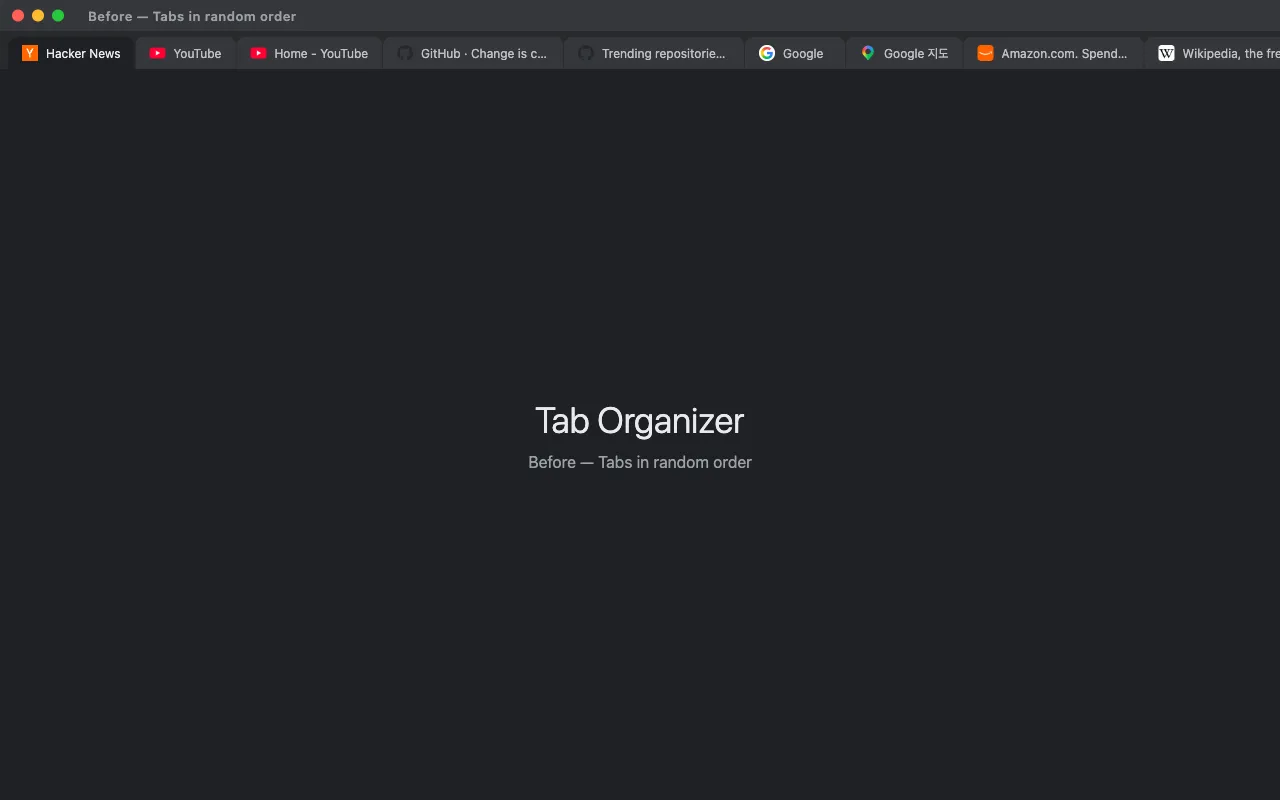

- Choose By URL, By title, or Custom, which groups by site in the order you first opened them
- Group by full hostname, or by domain so every Google service lands together
- Existing tab groups are sorted by name and tidied inside; pinned tabs stay put
Put a project away, and get it back exactly as it was
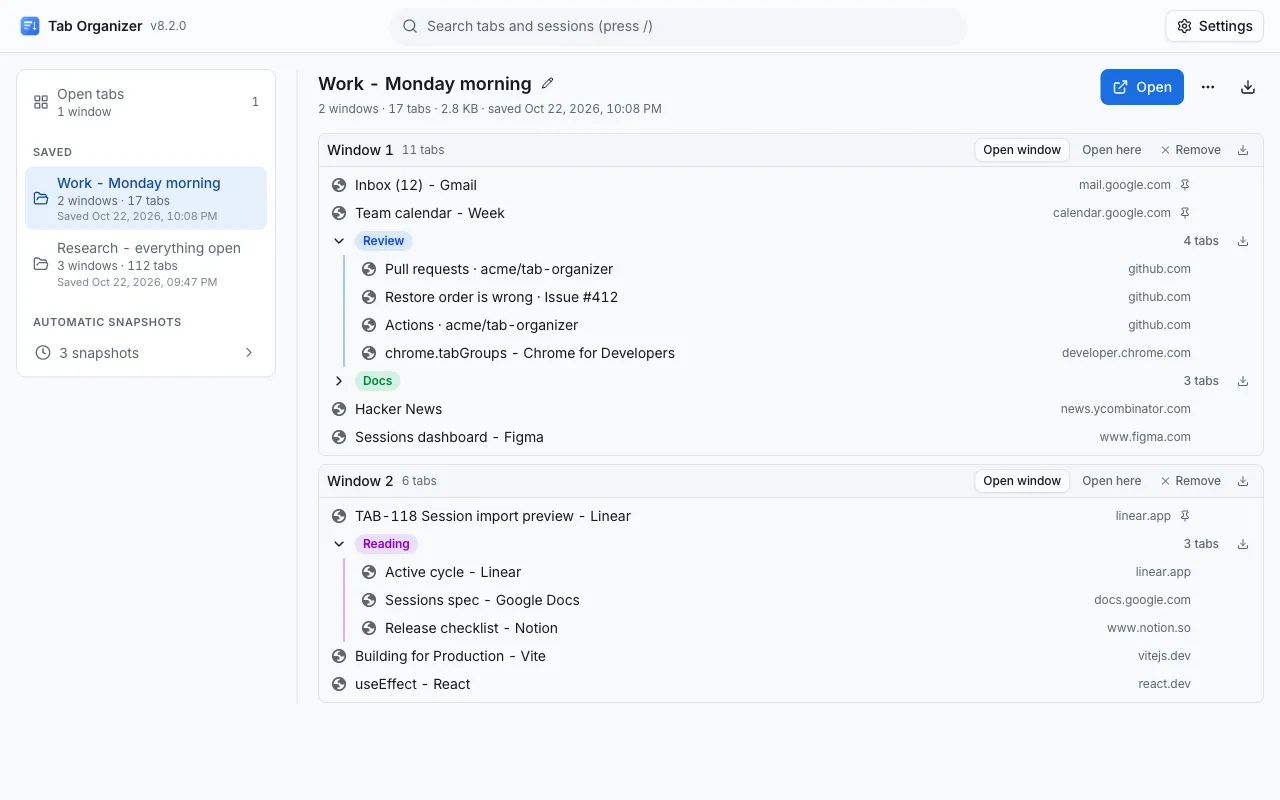
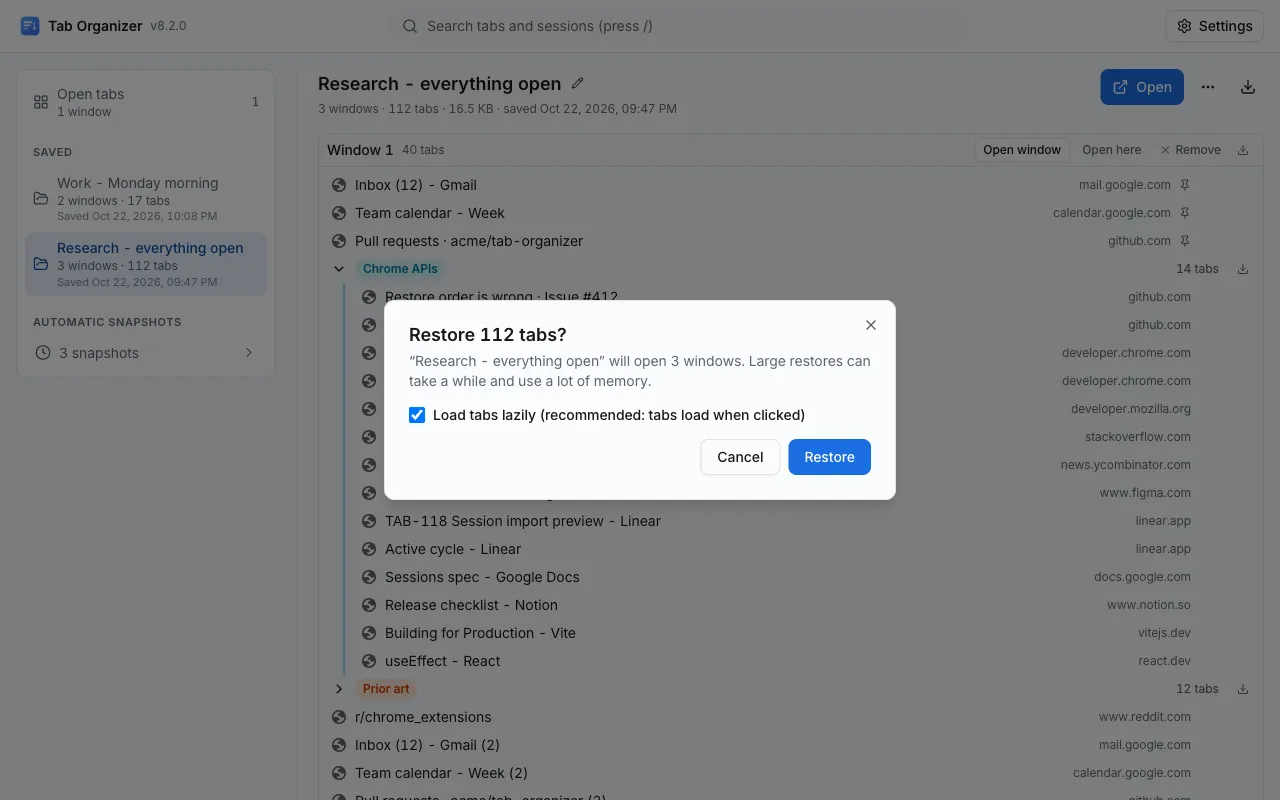
Save every window from the right-click menu or the Save button, or just the one you are in with a keyboard shortcut you assign. Restoring rebuilds the tab order, pinned tabs, tab groups, the active tab and the window size.
- Open a session in new windows, or add it to the window you are in
- Big sessions load lazily, with progress and a Cancel button
- Restoring never deletes the saved session
A safety net for crashes and closed windows
Every 5 minutes, and only when something changed, Tab Organizer keeps a snapshot of all your open windows. After Chrome restarts, the last one is marked as recovered so you can pick up where you left off.
- The 20 most recent are kept by default; you choose the interval and the number
- Keep moves a snapshot into your saved sessions for good
- On by default, off in one click, and then no timer runs at all

Find that one tab, wherever it is
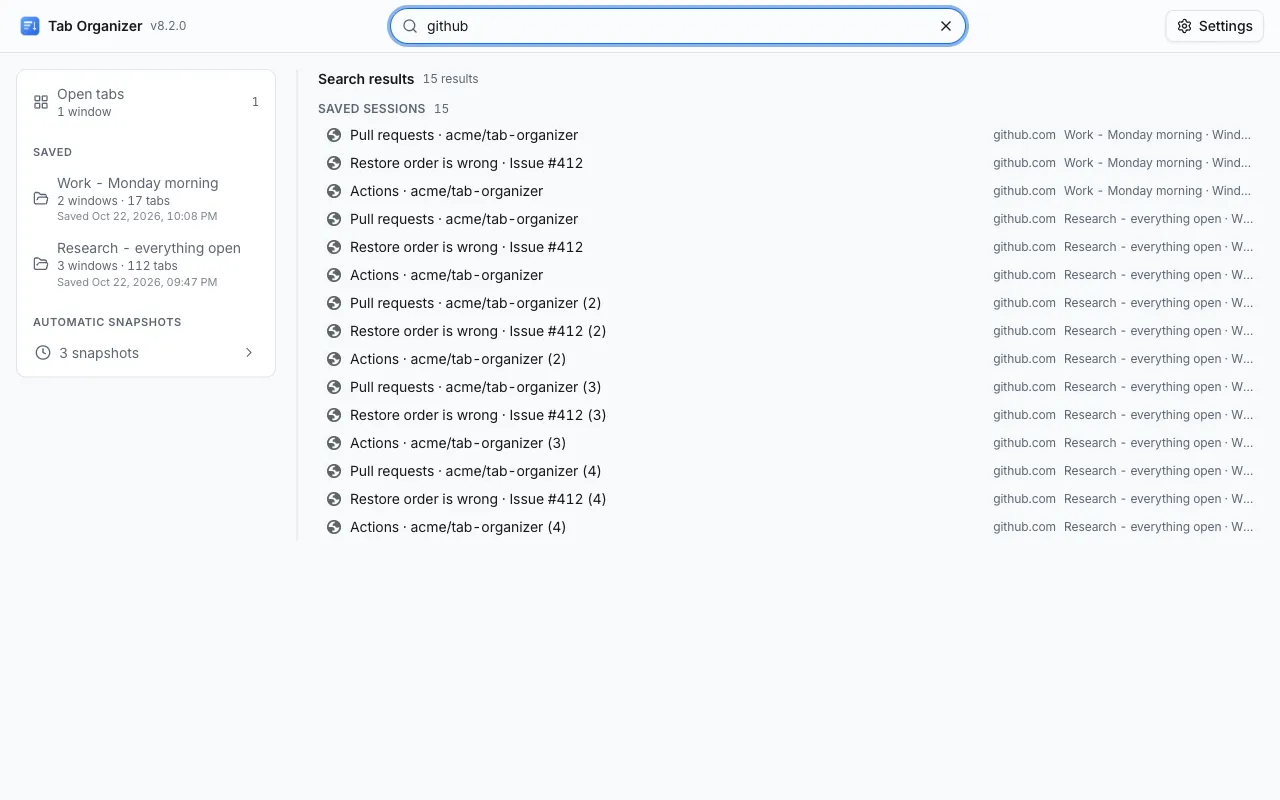
One search box looks through your open windows and every saved session by title, address or site, best matches first. Snapshots are searched too when you ask.
- Press / to search from anywhere on the page
- Arrow keys to move, Enter to open, Esc to clear
- A saved tab that is already open is switched to, not opened twice
Duplicate tabs, handled the way you like
Keep one is the default: extra copies of the same page are closed, keeping the one you are looking at. You can also choose Keep all, or Group them to collect the copies in a tab group to review first.
- Every setting saves as you change it, no Save button
- Advanced options for pinned and suspended tabs stay out of the way
- Closed a duplicate by mistake? Ctrl+Shift+T brings it back

And the rest of the toolkit
Small things that make a big tab habit easier to live with.
Assemble!
Pull the tabs of every other window into the one you are using. Tabs are moved, never reopened, so groups, history and anything you typed survive.
Import and export
JSON that imports back exactly, Markdown, plain text, CSV, or HTML bookmarks for Chrome. Import a file or paste a list of links, with a preview first.
Keyboard shortcuts
On a new install, sorting gets Alt+Shift+S, Assemble! Alt+Shift+A and pausing every YouTube video Alt+Shift+P (Option on a Mac); set or change any of them at chrome://extensions/shortcuts. Saving a session and opening Tab Organizer can have keys of their own.
Works with what you use
Tabs suspended by The Marvellous Suspender or a similar suspender sort by their real address. Name your tab groups 1-Work, 2-Reading to set their order.
Your tabs never leave your computer
Tab Organizer has no server to send anything to. It works the same with the network unplugged.
Stays on the device
Sessions and snapshots live in Chrome’s local extension storage. They are not synced and not uploaded.
No account
Nothing to sign up for and nothing to sign in to. Install it and click.
No network
No analytics, no tracking, no requests of any kind. Nothing is read from the pages you visit; the one thing ever run in a page is pausing YouTube videos, once you allow it.
Give your tabs one click
Free on the Chrome Web Store. Works in Chrome 123 or newer, and should work in Edge and Brave too.